Why Scam Links Now Come From Places You Trust
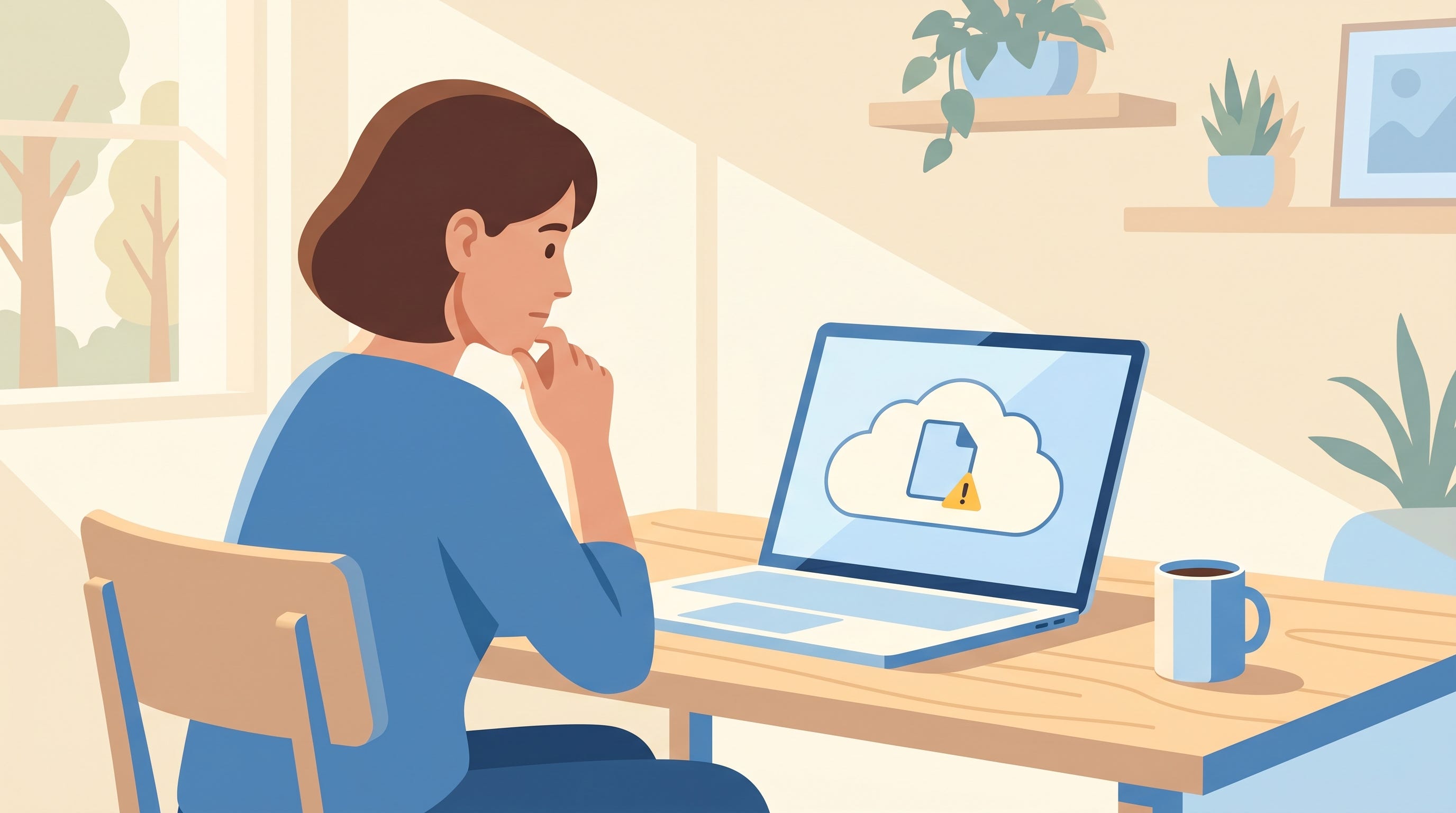
Scam links used to be obvious. Random letters, weird country codes, cheap hosting. The modern version is sneakier. Criminals have figured out that if they host their scam page on Google Docs, Canva, or Microsoft OneDrive, your spam filter lets it through and your brain trusts the familiar logo. Same scam, much better disguise.
Almost everyone who uses email. But these attacks hit certain groups harder:
Office staff at schools, clinics, nonprofits, and small businesses who get lots of shared-document links as part of their day
Anyone who collaborates on Google Docs or Microsoft files for work or volunteer groups
Real estate agents, lawyers, accountants, and anyone who receives client files by email
Older adults whose kids or grandkids send them real Google Docs links, so they’ve learned to trust them
The attack works because you’ve been trained, correctly, to trust these services.
The attacker hosts the scam on a trusted platform. They create a free Google Doc, a Canva design, a Microsoft OneDrive file, a Dropbox file, or a free Notion page. The page itself looks like a login prompt for your bank, Microsoft, or Apple.
They email you a link. The link genuinely goes to docs.google.com, canva.com, onedrive.live.com, or notion.site. Your spam filter trusts it. Your eyes trust it.
You click. The page asks you to sign in to “view the document”. Because the URL bar says google.com or canva.com, you assume it’s safe.
You sign in. You enter your real password. The page sends it to the criminal and often forwards you to a real document so you don’t suspect a thing.
Sometimes there’s an extra layer: the first page has a harmless document with one button. Clicking the button sends you to a second page on a site the attacker owns, where the actual credential theft happens. By then you’ve already lowered your guard.
An email sharing a document you weren’t expecting, even from a real-looking sender
A Google Docs, OneDrive, Canva, or Notion page that asks you to sign in to see its content. Real documents from people you work with don’t need a separate sign-in.
Any sign-in prompt where the URL in the browser bar does not match the service. Always check.
A document that has only one button, one link, or one line of text pushing you to click
Emails from people you know whose wording or tone feels off. Their account may be compromised, and the attacker is using it to spread the scam inside their address book.
Urgency: “sign in quickly, this link expires in an hour”
Hover before you click. On a computer, hover your mouse over the link and look at the bottom-left corner of your browser. Does it actually go where you expect? On a phone, long-press the link and pick “Copy Link” to see the full address.
If a document needs a sign-in, open the service directly first. Open a new tab, type
drive.google.comoronedrive.live.comyourself, and sign in there. Real shared documents show up in your account. Fake ones don’t.Turn on two-step verification for your Microsoft or Google account. Even if you enter your password on a fake page, the criminal still can’t get in without the code on your phone. Our free course Simple Strategies to Be Secure Online walks through it.
Use a password manager. If you use the Apple Passwords app or 1Password, it will refuse to fill your password on a site it doesn’t recognize. That refusal is a huge warning sign.
Check haveibeenpwned.com if you think you signed in somewhere you shouldn’t have. Change any affected passwords right away.
Report the attack. Call the Canadian Anti-Fraud Centre at 1-888-495-8501. Also forward the email to Google or Microsoft’s abuse address so they can take the file down.
The lesson is not “stop trusting Google and Microsoft”. It’s “don’t trust a specific link just because its host is familiar”. The logo in the browser bar is not a safety signal. Only one habit works: when a sign-in prompt shows up, close the email, open a fresh tab, type the service address yourself, and log in from there. Five extra seconds and this entire attack pattern stops working.
If you’re not sure about a specific email, ask Dave. Paste the sender address and the visible link, and he can walk you through the red flags.
Related reading: our How Not to Get Phished course teaches the full 4-step check in under 30 minutes. Free, no account needed.
Never miss an alert
New posts like this one, free every week. No spam, unsubscribe any time.